Speed Up a Slow Android Phone in 2026
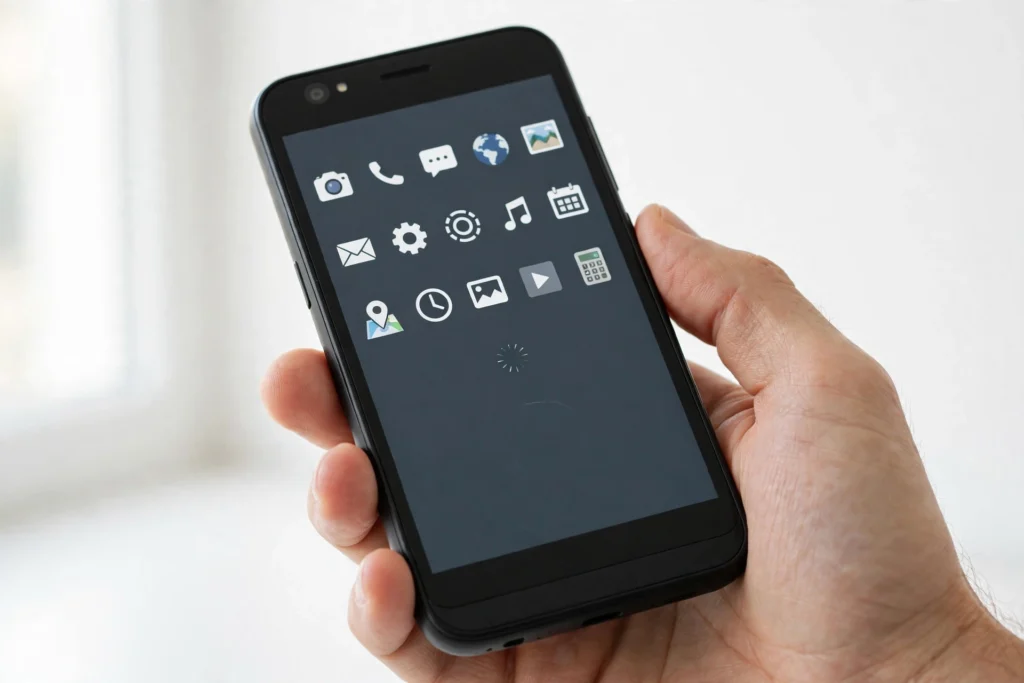
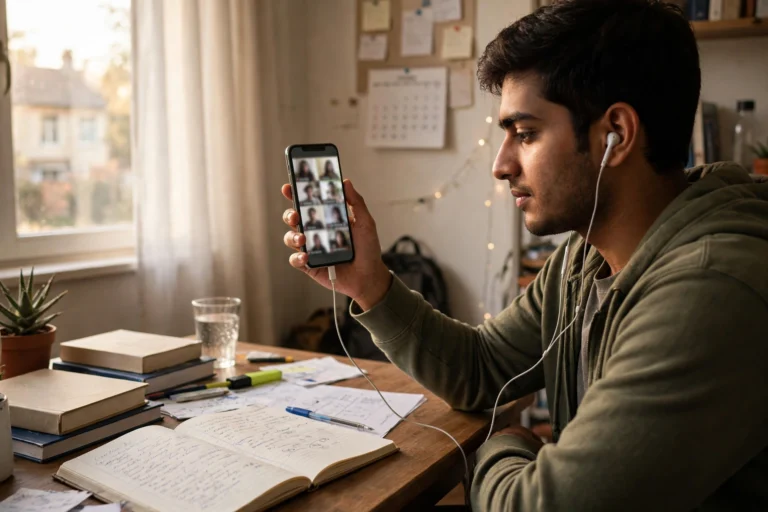
Your phone was fast when you bought it. A year or two later, apps take a few seconds to open, the keyboard lags behind your typing, WhatsApp photos load slowly, and switching between apps feels like wading through mud. Nothing is actually broken — and that is the good news. In most cases a slow Android phone is not a dying phone. It is a phone choked by full storage, too many background apps, outdated software, or settings that waste its limited resources.
This guide walks through ten safe, step-by-step fixes that actually work in 2026, in the order you should try them — cheapest and safest first, the factory reset last. Every step uses settings built into Android itself or your phone maker’s own tools. Nothing here needs a paid app, a root, or a risky download, and nothing will delete your photos or chats if you follow the steps as written. The advice applies to any Android phone, but it matters most on the budget phones most Pakistanis actually own — phones with 4GB of RAM and 64GB or 128GB of storage, where every gigabyte and every background app counts.
Why Android phones slow down over time
Phones do not slow down because the processor gets tired. The hardware is the same as the day you bought it. What changes is everything around it. Apps get bigger with every update — WhatsApp, Facebook, TikTok and games all grow heavier over time. The operating system itself grows too: Android 16, which reached stable status in June 2025, is what most phones in Pakistan run today, and Android 17 began rolling out to Pixel phones in mid-June 2026, with Samsung, Xiaomi and other makers following through their own updates. Each major update adds features that demand a little more from the same hardware.
The three usual culprits are storage, memory and background work. When internal storage gets nearly full, Android has less room to work — it needs free space for app updates, temporary files and the system’s own optimisation passes, which Google says run while the phone charges. Performance degrades meaningfully once storage crosses about 85 percent full, which is why the practical rule is to keep at least 20 percent free. On a 64GB phone that means keeping roughly 13GB free; on 128GB, about 26GB. Memory is the second culprit: a phone with 4GB of RAM can only keep a handful of apps ready at once, so every extra app running in the background forces the phone to reload apps from scratch. The third is background work — apps syncing, updating, tracking location and refreshing feeds while you are not using them.
Heat makes it worse, and Pakistan’s summers do not help: a phone that is already hot throttles its processor to protect itself, so a slow phone in July may partly be a hot phone. Age matters too, but less than people think — well-kept Android flagships from 2023 onwards generally hold their performance for three to four years of routine use. If your phone is in that window and feels slow, housekeeping will almost certainly fix it. A modern budget phone with 8GB of RAM and 256GB of storage, like the Tecno Pova Curve 2 5G, starts with far more headroom, which is why it feels fast for longer — but even it benefits from the same habits.
1. Free up storage and memory — the biggest win
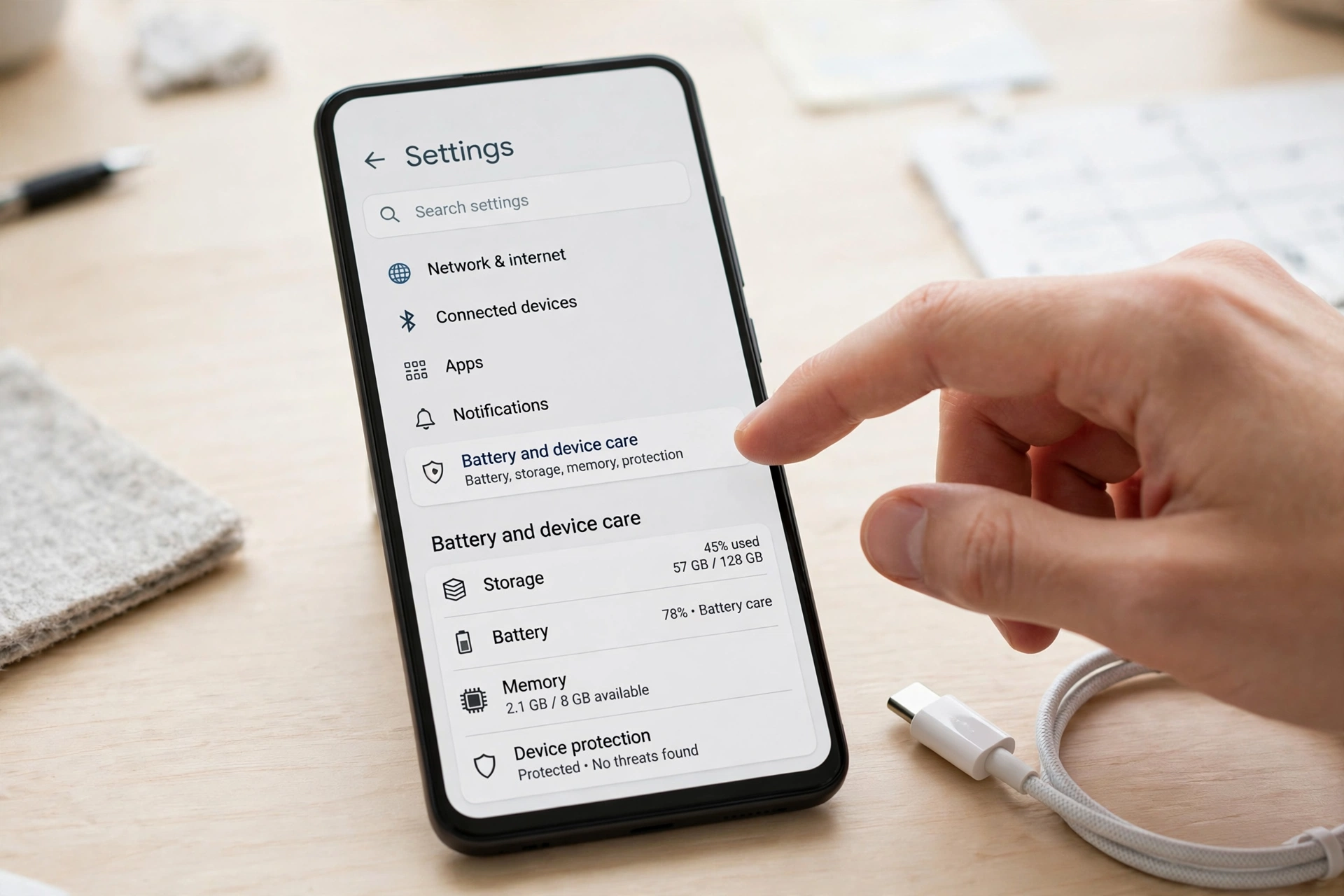
Start here, because this one fix solves more slow phones than all the others combined. Open Settings, then Storage, and check how full the phone is. If it is above 80 percent full, that alone is very likely why the phone feels slow. The cure is to get it back under 80 percent — ideally with a comfortable margin — and the fastest way is to delete what you do not need.
WhatsApp is usually the biggest storage hog on a Pakistani phone: years of forwarded videos, voice notes and group photos pile up silently. Open WhatsApp, go to Settings, then Storage and data, then Manage storage, and delete the large files and the media from chats you no longer need — your chats themselves stay. Next, open the Files app (Google Files on most phones) and use its Clean suggestions: it finds duplicate photos, blurry shots, old screenshots, downloaded memes and app junk you will never miss. Then go to Settings, then Apps, sort by size, and uninstall the apps you have not opened in months. Games you finished, shopping apps you used once, duplicate browsers — each one frees storage and stops running background tasks.
For photos and videos, back them up to Google Photos first, then use its “Free up space” option, which deletes the on-device copies of photos already backed up. If your phone has a microSD slot — many budget phones sold in Pakistan still do, including the Samsung Galaxy A07 — move photos, videos and music to the card to free internal storage. Our full guide to freeing up phone storage without buying a new phone covers the microSD, cloud and cleanup steps in detail.
Then clear the cache. App cache is temporary data apps store to load faster, and it can grow to gigabytes. On most phones, go to Settings, then Apps, pick an app, tap Storage, then Clear cache. Do this for the worst offenders — browsers, Facebook, TikTok, YouTube — and you can free hundreds of megabytes without losing any login or data. Do not tap “Clear data” by accident: that wipes the app’s logins and settings. Clearing cache is safe; clearing data is not the same thing.
Finally, free up memory. On a Samsung Galaxy, open Settings, tap Device care, tap Memory, then tap Clean now — this closes background apps and frees RAM in one step. Samsung’s Device care also has an Optimize now button that clears memory, deletes unnecessary files and scans for malware in a single pass, and Samsung recommends running it regularly. On other brands the same idea lives under different names — Xiaomi’s Security app, Infinix’s Phone Master, Tecno’s Hi Manager — but the job is the same: close what you are not using, once a month or whenever the phone feels sluggish.
2. Update everything, then restart the phone
Outdated software is one of the most common causes of a slow phone, and it is also the easiest to fix. System updates do not just add features — they include performance work, bug fixes and security patches, and Google’s Android Runtime improvements now reach even older phones through Google Play System updates. Check for a system update in Settings, then Software update (on Samsung) or System, then System update (on most other phones). If an update is waiting, install it over Wi-Fi with the phone charged. Android 16 brought under-the-hood performance changes, and Android 17 adds an app memory limit that stops one program from consuming excessive RAM — but you only get those improvements if you actually install the update.
Update your apps too. Open the Play Store, tap your profile icon, then Manage apps and device, then Update all. Old app versions can misbehave on a new Android version, drain battery in the background, or simply run slower than the current build. While you are there, turn on auto-updates over Wi-Fi so this stays done.
Then restart the phone. It sounds too simple to matter, but a restart closes every running app, clears temporary system state and refreshes memory — and most people almost never do it. Samsung’s own support advice lists restarting as a core fix for a slow Galaxy, and recommends it whenever the phone feels sluggish or unresponsive. If the phone freezes and the restart menu will not appear, Samsung says to press and hold the Side key and Volume down key together for more than seven seconds. Make restarting a weekly habit, and use Samsung’s auto restart if your phone has it: Settings, then Device care, then Auto optimisation, then Auto restart lets the phone restart itself on a schedule, for example overnight.
3. Tame animations and background apps with safe settings
Some of the best speed fixes live in settings most people never open — and all of them are safe if you change only what this guide names. The first is the animation speed. Every time you open an app or switch screens, Android plays a small transition animation, and by default those animations run at full speed. Making them faster makes the whole phone feel instantly snappier, because you spend less time waiting for transitions to finish.
To change it, you need Developer Options, a hidden settings menu Google includes for testing. It sounds technical, but unlocking it is harmless: go to Settings, then About phone, and tap Build number seven times. Enter your lock screen password when asked, and you will see “You are now a developer!” Developer Options then appears near the bottom of Settings, usually under System. Inside it, find three settings — Window animation scale, Transition animation scale and Animator duration scale — and change each from 1x to 0.5x. Do not turn them off completely (0x), because that can cause visual glitches; 0.5x is the sweet spot that makes the phone feel faster without breaking anything. Change nothing else in Developer Options unless you know what it does.
Next, stop apps from running wild in the background. In Settings, then Apps, open each heavy app and check its Battery setting — setting rarely-used apps to Restricted stops them running in the background. On Samsung, Device care also has a Battery section where you can put unused apps to sleep automatically. As an optional advanced step inside Developer Options, the Background process limit setting can be set to “At most 4 processes” — or “At most 2 processes” on a phone with 4GB of RAM or less — but leave it on the standard limit if you rely on apps staying ready in the background, because a tighter limit means apps reload more often.
Two more easy wins: disable the bloatware you cannot uninstall. Preinstalled apps you never use can be disabled from Settings, then Apps — tap the app, then Disable. Disabled apps stop running, stop updating and disappear from the app drawer, and you can re-enable them any time. And switch heavy apps for their Lite versions where they exist — Facebook Lite and similar light apps use far less storage, RAM and data, which matters a lot on a 4GB phone like the Infinix Smart 20. Also turn off live wallpapers and reduce widgets on the home screen: every live widget is another app refreshing in the background.
One warning belongs in this section: do not install third-party “speed booster”, “RAM cleaner” or “phone optimiser” apps. They promise to speed up your phone, but Android already does most of what they claim, and the well-known ones are either useless or outright adware. The system tools — Samsung Device care, Xiaomi Security, Google Files — do the job properly and are already on your phone. If an app promises to double your speed with one tap, it is selling you a button, not a fix.
4. Check the battery and the hardware before blaming the software
Sometimes a slow phone is a tired battery in disguise. As a lithium-ion battery ages, its internal resistance rises, it holds less charge, and the phone may throttle performance to keep the battery stable. If your phone also drains fast, shuts down unexpectedly, or only works properly while plugged in, the battery is the likely culprit. Android 16 added a battery health and cycle-count readout on supported devices — check Settings, then Battery, then Battery health if your phone shows it. Anything below 80 percent is a sign a replacement is worth considering, though a phone can show acceptable battery health and still have a charging or power fault, so do not rely on that number alone. Our phone battery health tips explain how heat, fast charging and load-shedding habits wear batteries down faster in Pakistan.
Heat deserves its own check. A phone that is hot throttles its processor, so a phone that feels slow in a 40-degree room may be protecting itself rather than failing. Keep it out of direct sun, take the case off while charging or gaming, and never leave it on a car dashboard. If the phone gets hot while doing nothing — sitting idle on a table, or warm in your pocket for no reason — that is different: a runaway app, a failing battery or a hardware fault, and it needs a technician, not a settings change.
Also check the storage type reality: a phone with 64GB of storage that is 90 percent full will always struggle, and a phone with 4GB of RAM will always reload apps more often than one with 8GB. That is not a fault; it is the hardware’s limit. Samsung’s RAM Plus feature can help a little — it uses some storage as virtual memory, up to 8GB on supported Galaxy phones, from Device care, then Memory, then RAM Plus — but virtual memory is slower than real RAM, so treat it as a small cushion, not a cure.
5. When nothing works: factory reset — and when to replace the phone
If you have freed storage, updated everything, restarted, tamed the animations and disabled the bloatware, and the phone is still slow, the last software fix is a factory reset. It wipes the phone back to how it left the factory — every app, account and setting gone — which is exactly why it works: it removes years of accumulated junk in one stroke. Back up first. Google One backs up apps, call history, contacts, device settings and SMS; photos back up through Google Photos. Check the backup is complete before you reset — Settings, then System, then Backup on most phones.
Then go to Settings, then System, then Reset options, then Erase all data (factory reset). The phone will restart and walk you through setup like a new device. Restore your backup, then reinstall only the apps you actually use — this is the moment to leave the dead weight behind. If the phone is fast again after a reset, the problem was software all along. If it is still slow on a clean system with only a few apps installed, the problem is the hardware: a worn battery, failing storage, or simply a processor that can no longer keep up with 2026 apps.
That is the point to weigh a replacement honestly. A phone that is four or five years old, has had no security update in over a year, and still lags after a factory reset has given you its best years. When you do replace it, the specs that matter most for long-term speed are the ones that caused the trouble in the first place: at least 8GB of RAM, at least 128GB of storage (256GB is better if you keep phones for years), and a brand that promises several years of updates — Samsung now offers up to six years of OS updates on its newer Galaxy A-series phones, which is why a mid-range Samsung ages more gracefully than a phone abandoned after one update. Check the current prices on MobZilo before you buy, and remember to check the PTA status of any phone you purchase so it stays unblocked on Pakistani networks.
A slow Android phone is rarely a dead phone. In most cases the fix is twenty minutes of housekeeping: free the storage, clear the cache, update the software, restart, and turn the animations down. Do those five things and the phone you already own will feel like a newer one — and the money you did not spend on a replacement stays in your pocket. If the phone is still slow after all of it, you now know it is the hardware, not you, and you can replace it with confidence instead of guessing.
Facts checked 6 November 2026 from Samsung Support (Device care Optimize now / Memory Clean now, RAM Plus up to 8GB, auto restart, restart with Side key + Volume down 7 seconds, One UI 8.5 software-update path; pages updated 27 August 2026 and 21 April 2026), Android 16/17 release reporting (Android 16 stable 10 June 2025; Android 17 stable mid-June 2026, Pixel 6 and newer first; Android 17 app memory limit), and independent Android performance guides (storage degrades past ~85% full, keep under 80%; animation scales 0.5x via Developer Options after tapping Build number 7 times; background process limit 4 / 2 on 4GB phones; third-party booster apps are scams/adware; factory reset via Settings > System > Reset options after a Google One backup). No prices in this article. Menu names vary slightly by brand and Android version — check your phone’s Settings if a label differs.