Save Mobile Data in Pakistan: 10 Ways to Make It Last

Most mobile data bundles in Pakistan do not run out because you used too much. They run out because a few apps, settings and habits quietly burn data in the background while you are not looking. A video auto-playing in your feed, a photo backup running on 4G, an app updating itself at noon — each one takes a little, and together they can finish a monthly bundle a week early.
The good news is that fixing this costs nothing. Your phone already has the tools built in, and the right bundle choice can double the data you get for the same money. These ten fixes work on Android and iPhone, on Jazz, Zong, Ufone and Telenor, and they take about twenty minutes to set up once. Do them in order, and the same bundle that used to die on the 20th can last until the 30th.
First, find out where your data actually goes
Do not start switching things off at random. Open the data usage screen first and let the phone tell you the truth. On Android, go to Settings, then Network and Internet (on Samsung phones, Settings, then Connections, then Data usage), then App data usage. On an iPhone, go to Settings, then Mobile Service or Cellular, and scroll down to the per-app list. Both screens show exactly how much data each app used in the current billing cycle, with the biggest culprit at the top.
On most Pakistani phones the top three are predictable: YouTube, Facebook or TikTok, and WhatsApp. But the surprises are what matter — a game you have not opened in weeks still syncing, a cloud app uploading in the background, a browser preloading pages. Note the top five, because the rest of this guide targets them specifically.
While you are on this screen, set a warning. On Android, under Data warning and limit, set a warning at about 80 percent of your bundle and a hard limit just above your bundle size, so the phone cuts mobile data off instead of silently eating into pay-as-you-go balance. On iPhone there is no built-in hard limit, so set a monthly reminder on the day your bundle renews and check the same screen once a week. A bundle you measure is a bundle you can control.
Turn on Data Saver and Low Data Mode
This is the single biggest win, and it takes ten seconds. Android calls it Data Saver; Apple calls it Low Data Mode. Both do the same job: they stop apps using data in the background, pause automatic downloads and updates, and tell apps to use less data while they are open.
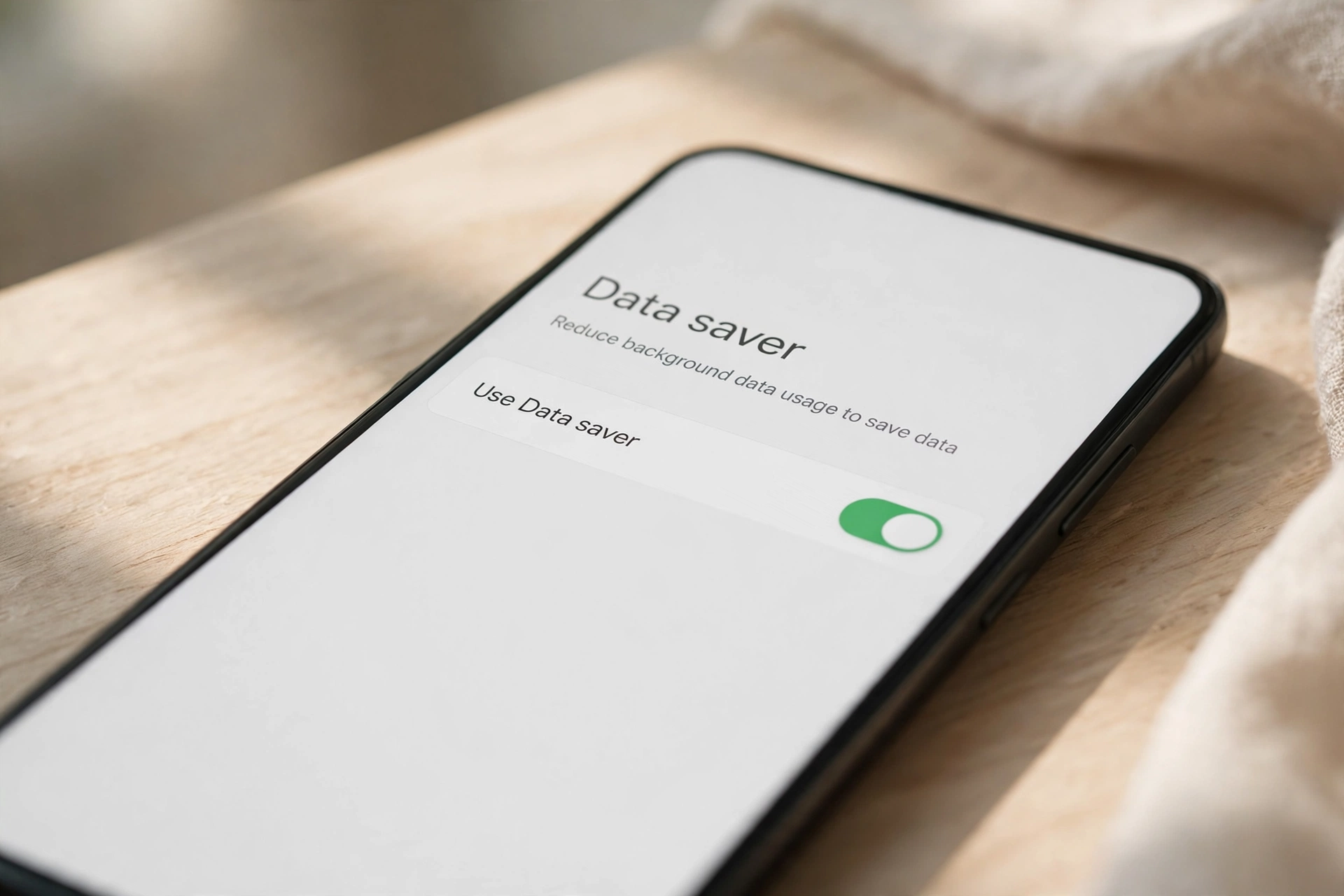
On Android, go to Settings, then Network and Internet, then Data Saver, and switch it on. On Samsung phones the same switch lives under Settings, then Connections, then Data usage, then Data saver. You can whitelist the apps that must keep working freely — WhatsApp and your banking app are the usual two — and everything else gets throttled in the background. On iPhone, go to Settings, then Mobile Service, then Mobile Data Options, then Data Mode, and choose Low Data Mode. On a 4G connection the same switch sits directly under Mobile Data Options.
Leave it on permanently. It does not break anything important: messages still arrive, calls still work, and apps still open normally. What stops is the invisible traffic — the preloading, the silent syncing, the background refresh that nobody asked for. Users commonly report 20 to 40 percent lower monthly usage after switching it on, and the only people who should turn it off are those on a genuinely unlimited plan.
Stop apps eating data in the background
Data Saver is the blunt tool. The precise tool is restricting individual apps, and it is worth doing for the two or three worst offenders from your usage screen. On Android, go to Settings, then Apps, pick the app, tap Mobile data, and switch off Allow background data usage. The app still works perfectly on Wi-Fi and when you open it — it simply cannot phone home while you are not looking. On iPhone, the same screen (Settings, then Mobile Service) has a toggle beside every app: switch off mobile data for games, streaming apps and shopping apps you only ever use at home.
Next, tame Background App Refresh. On iPhone, go to Settings, then General, then Background App Refresh, and set it to Wi-Fi only — or Off entirely for apps you do not need instant updates from. On Android the equivalent is the per-app background data switch above, plus turning off auto-sync for accounts you rarely use under Settings, then Accounts.
Then check the two silent giants: photo backup and app updates. In Google Photos, tap your profile picture, then Photos settings, then Backup, then Mobile data usage, and switch off backing up videos over mobile data — a single 4K video can cost more than a whole day of browsing. On iPhone, iCloud Photos backs up over mobile data only if you allow it; keep it on Wi-Fi. And in the Play Store and App Store, set app updates to Wi-Fi only. An app update of 200MB over mobile data is the kind of thing that kills a bundle overnight, and it happens while you sleep.
One more quiet leak: Wi-Fi Assist on iPhone (called Connectivity Assist on iOS 26) and the similar Switch to mobile data option on Android. When your Wi-Fi is slow or drops for a second, the phone silently switches to mobile data to keep things moving. Turn it off at the bottom of Settings, then Wi-Fi on iPhone, and in the Wi-Fi settings on Android, unless you genuinely need the seamless handover.
Use lite apps and lower your streaming quality
Video is the hungriest thing on your phone, and social apps are second. Two changes here save more data than any setting. First, drop the video quality. In YouTube, tap your profile picture, then Settings, then Video quality preferences, then On mobile networks, and set it to Data Saver or 480p. A 480p video uses roughly a quarter of the data of a 1080p one, and on a phone screen the difference is barely noticeable. Do the same in TikTok and Facebook, where video quality and autoplay settings live under their data or media settings, and in Netflix or Spotify set downloads and streaming to Standard rather than High when you are on mobile data.
Second, switch the heaviest apps to their lite versions. Facebook Lite is around 2MB to download against roughly 87MB for the full Facebook app in one April 2026 test, and it does not preload videos — you only spend data on the photos and videos you actually tap. Messenger Lite, Instagram Lite and Spotify Lite work the same way: the core features, far less background traffic. Google’s Go apps — Google Go, Maps Go and Gallery Go — are the same idea for search and maps, and they work offline where the full apps struggle. Opera Mini is worth a look as a second browser: its data compression can cut web browsing data sharply, though some banking and government portals do not work well through it, so keep your main browser for those.
One honest note: YouTube Go, the old lite YouTube app, was discontinued by Google in 2022, so do not download anything calling itself YouTube Go from outside the Play Store — it is not official. The main YouTube app now has the data-saving settings built in, which is what you should use. And never install a “lite” app from outside the Play Store: fake lite apps are a real thing, and the saving comes from the official stripped-down app, not from a lookalike with a data-saver switch bolted on.
If your phone is a budget model, lite apps pull double duty. The Samsung Galaxy A07 and the Infinix Smart 20 — two of the most popular phones under PKR 50,000 in Pakistan right now — both run noticeably smoother with lite apps, because the smaller apps use less RAM and storage as well as less data. If you want to go further, our guide to free up phone storage without a new phone covers the same clean-up logic for space.
Pick the right bundle for how you actually use data
All the settings in the world will not help if your bundle is the wrong shape for your usage. Most people in Pakistan buy the bundle they have always bought, not the one that fits. Start from your real usage: check last month’s total in the data usage screen, then match it to the cheapest bundle that covers it with a little headroom. Buying a 30GB bundle when you use 12GB is wasting money; buying 10GB when you use 15GB means a week of expensive add-ons.
For heavy users, the postpaid price lists the PTA published on 30 September 2026 are a useful starting point. On postpaid, Ufone’s Prime Mega gives 200GB for PKR 1,700 a month — about PKR 8.50 per GB — while Zong’s Platinum gives the same 200GB for PKR 2,000 and Jazz’s 200GB plan costs PKR 3,500. At the cheap end, Telenor’s Freedom 500 gives 5GB for PKR 600 a month, Zong’s Bronze gives 10GB for PKR 800, and Ufone’s Prime 1000 gives 20GB for PKR 1,000. Jazz has no postpaid plan below PKR 1,600. These are PTA-listed prices, checked in October 2026 — always confirm the live price before subscribing, because operators revise bundles without warning.
But the cheapest data in Pakistan is often not a general bundle at all — it is a social or WhatsApp-only bundle. Checked on 9 November 2026, Telenor’s Monthly WhatsApp bundle costs PKR 104 including tax for 4GB of WhatsApp data for 30 days, Zong’s WhatsApp Offer gives 4GB for PKR 250 plus tax, and Ufone’s Social WhatsApp gives 10GB of WhatsApp data for a PKR 350 load. Jazz does not list a WhatsApp-only monthly bundle; its nearest option is the Monthly YouTube and Social Offer at PKR 608 including tax for 10GB across YouTube, Facebook and WhatsApp. If WhatsApp and Facebook are most of your usage, one of these plus a small general bundle can cost half as much as a big all-purpose package.
Three warnings before you subscribe. First, every prepaid recharge in Pakistan loses 15 percent withholding tax, so loading PKR 1,000 gives you about PKR 850 of usable balance — budget for that, and prefer bundles quoted with tax included. Second, check the night-data split: some cheap bundles put half the GBs in a 1am to 9am window you will never use, so a “75GB for PKR 700” bundle may only give you half that in the daytime. Third, Telenor merged into Ufone (PTML) on 1 July 2026, and existing Telenor packages continue during the transition until a single tariff is approved — if you are on a Telenor bundle, check whether it is still listed before your next renewal. And if you use WhatsApp heavily, the WhatsApp chat transfer guide is worth reading before you switch phones, because a badly done transfer is the fastest way to lose your chats — and your media auto-download settings with them.
Frequently asked questions
Does Data Saver slow down my phone? No. It limits background data and tells apps to use less data, but your phone’s speed is unchanged. Messages, calls and apps you open still work normally; only silent background traffic is reduced.
How much data does YouTube use per hour? Roughly 1GB per hour at 720p and around 2 to 3GB per hour at 1080p, while 480p uses about 250 to 500MB per hour. Dropping from 1080p to 480p on mobile data is the single biggest saving most people can make.
Is Facebook Lite safe? Yes — it is Meta’s official app on the Play Store, with the same account security as the full app. Avoid any “Lite” app downloaded from outside the Play Store.
Why does my bundle finish early even when I barely use the phone? Almost always background data: app updates, photo backups, social apps preloading video, and Wi-Fi Assist switching you to mobile data. Check the per-app usage screen, turn on Data Saver, and set a data warning — the culprit is usually in the top three.
Which is the cheapest mobile data bundle in Pakistan? It depends on how you use data. For WhatsApp-only use, Telenor’s Monthly WhatsApp at PKR 104 for 4GB (checked 9 November 2026) is the cheapest reported. For heavy general use, Ufone’s Prime Mega at PKR 1,700 for 200GB is the cheapest per GB on the PTA’s 30 September 2026 postpaid list. Always confirm the live price before subscribing.
Saving mobile data in Pakistan is not about using your phone less. It is about stopping the phone from spending data you never asked it to spend. Switch on Data Saver, restrict the worst background offenders, drop video to 480p on mobile data, pick a bundle that matches your real usage, and check the usage screen once a week. Do that, and the bundle you already pay for will finally last the month. MobZilo will keep tracking phone prices, bundles and PTA rules in Pakistan as they change.
Prices in this article are reported figures from the PTA tariff lists of 30 September 2026 and operator pages checked on 9 November 2026, and they change often — confirm the live price and the bundle terms with your operator before subscribing. Data usage figures for video quality are approximate and vary by app and content.